
PowerToys
by Microsoft
🛠️ Power User Utilities for Windows
A collection of utilities that supercharge your Windows experience.
Free, open-source, and officially from Microsoft.
Why Every Student Needs This
Unlock hidden productivity features that should be built into Windows.
Vanilla Windows
- 🎨 No quick color picker
- 📐 Basic window snapping only
- 🔒 "File in use" with no details
- 👀 No quick file preview
With PowerToys
- 🎨 Color Picker - Grab any color from your screen with one shortcut
- 📐 FancyZones - Create custom window layouts for multitasking
- 🔓 File Locksmith - See exactly which app is blocking your file
- 👁️ Peek - macOS-style Quick Look preview with spacebar
- 📝 Text Extractor - Copy text from images, videos, anything on screen
See It In Action
The five PowerToys utilities every student should use
🎨 Color Picker
Press Win + Shift + C to instantly pick any color from your screen. Get HEX, RGB, and HSL values copied to your clipboard.
💡 Student Tip:
Perfect for grabbing colors from reference images for your design projects or matching your school's brand colors!
- ✓ Pick any color on screen
- ✓ HEX, RGB, HSL formats
- ✓ Color history saved

Selecting colors with Color Picker

Open Window Layouts to Prepare for your work
📐 FancyZones
Create custom window layouts beyond basic snap. Design zones for your workflow — perfect for research with multiple windows open.
🎯 Example Layouts:
📚 Research: Browser + Notes + PDF
💻 Coding: Editor + Terminal + Docs
🎨 Design: Canvas + Reference + Tools
- ✓ Custom zone layouts
- ✓ Hold Shift while dragging to snap
- ✓ Multiple monitor support
🔓 File Locksmith
Ever get "file is in use" but don't know by what? Right-click any file and select "What's using this file?" to see exactly which process is blocking it.
📚 Real Student Story:
"I couldn't delete my project folder because something was using a file. File Locksmith showed it was VS Code's cache. Problem solved in seconds!" - CS Student
- ✓ See which process locks files
- ✓ End the blocking process directly
- ✓ Right-click integration

Replace with screenshot of File Locksmith
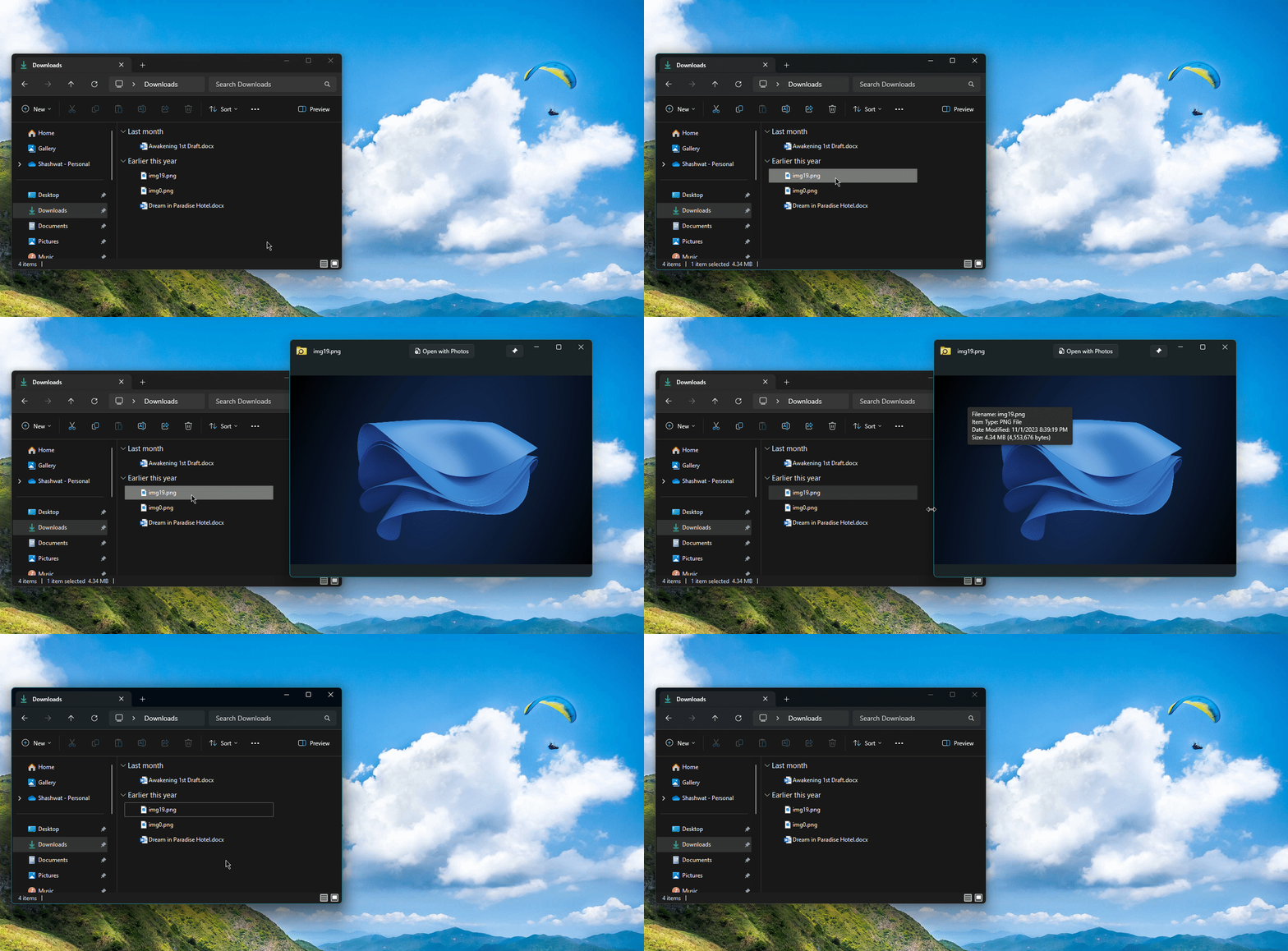
Selecting files and hit Peek!
👁️ Peek (Quick Look)
Just like macOS! Select any file and press Ctrl + Space to instantly preview it without opening the full app.
💡 Student Tip:
Browse through your Downloads folder and preview PDFs, images, and documents instantly. No more opening every file to find the right one!
- ✓ Preview images, PDFs, code files
- ✓ Spacebar or Ctrl+Space to activate
- ✓ Arrow keys to browse files
📝 Text Extractor (OCR)
Press Win + Shift + T and draw a box around any text on screen — even in images or videos — and it's copied to your clipboard.
📚 Real Student Story:
"My professor shares slides as images. I use Text Extractor to copy the text directly into my notes instead of retyping everything!" - Student
- ✓ OCR any text on screen
- ✓ Works on images, videos, PDFs
- ✓ Supports multiple languages
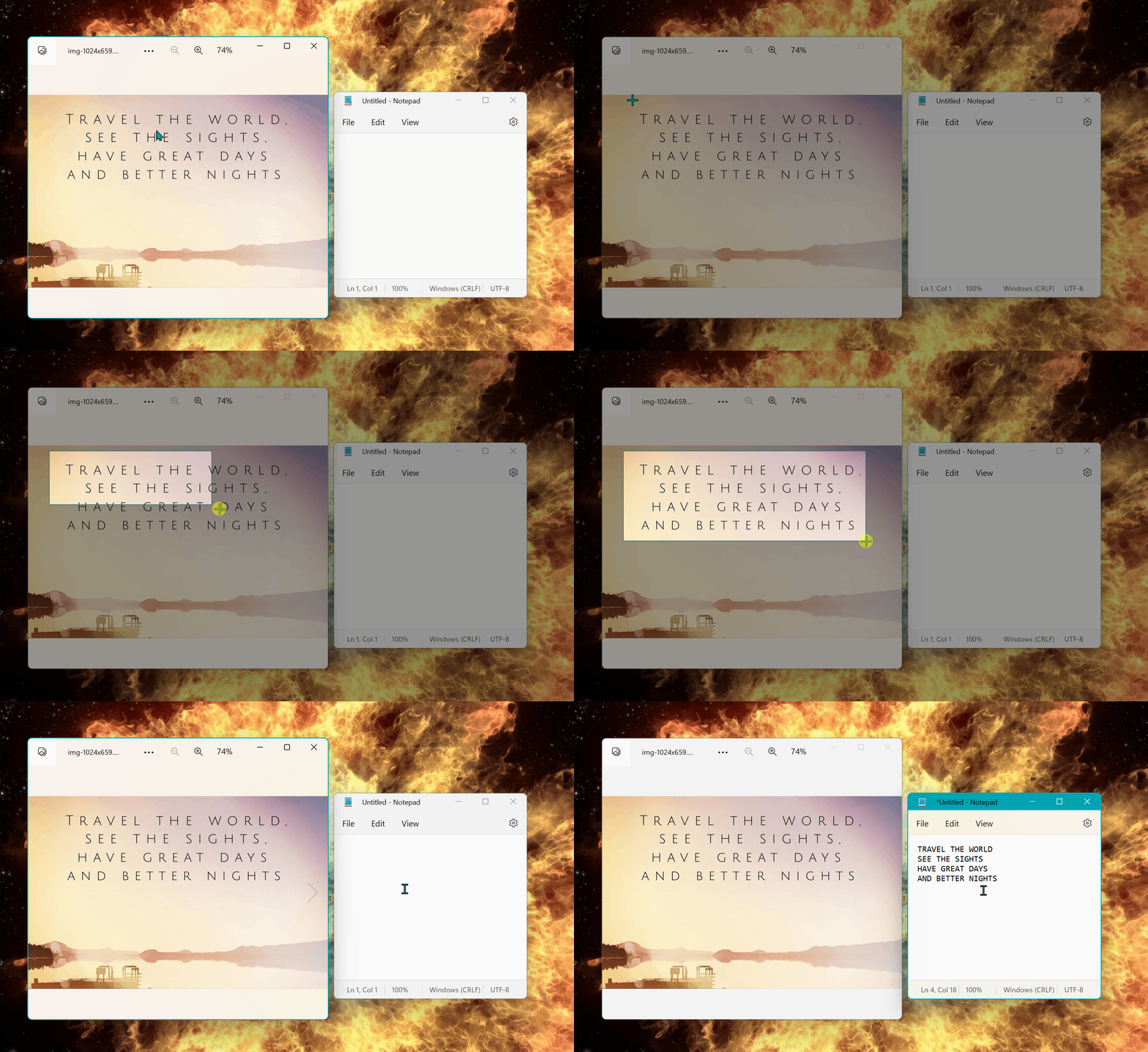
Selecting text with Text Extractor
⌨️ Quick Shortcut Reference
🎨 Color Picker
Win + Shift + C📐 FancyZones Editor
Win + Shift + `🔓 File Locksmith
Right-click → What's using?👁️ Peek
Ctrl + Space📝 Text Extractor
Win + Shift + T⚙️ PowerToys Settings
Search "PowerToys"Demo Guide
Watch how PowerToys supercharges your Windows
Unlock Your Windows.
For Free.
Join power users who get more done with PowerToys.
Download PowerToys (Free)Windows 10/11 • Free • Open Source by Microsoft
Also available via: winget install Microsoft.PowerToys